iPhone and iPad

eWallet 8.6 update for iOS now available in App Store

by Ken

eWallet header logo

eWallet® 8.6 for iOS* (iPhone, iPad and iPod touch) is now in the App Store. The update adds several user-requested features regarding customizing cards.

What’s New in this version

  • Added new Standard card style setting on cards to improve how card background images look when used in eWallet on multiple platforms
  • You can now import pictures directly from Files (in addition to the Camera and Photo Library) when adding card backgrounds or picture cards
  • eWallet now uses a monospaced, serifed font for hidden fields to better distinguish certain characters
  • Sensitive information copied to the clipboard is now cleared after a user configurable period of time (iOS 10+)
  • Improved support for camera permission
  • Built-in password generator will now create random passwords up to 100 characters
  • Other miscellaneous fixes and enhancements

Card backgrounds

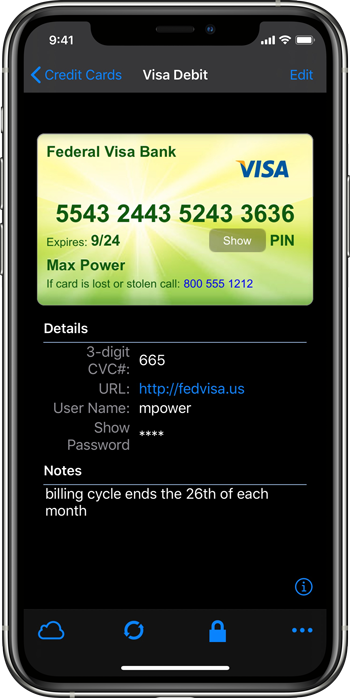
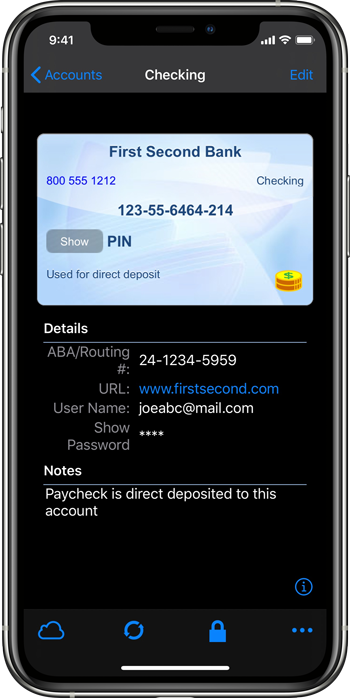
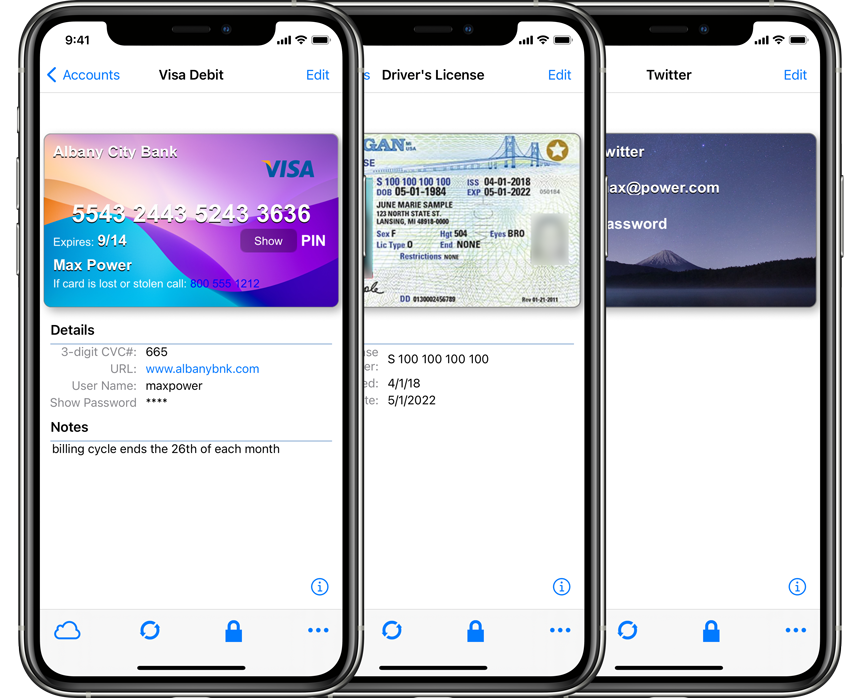
eWallet makes it easy to add information to its cards and it is only a couple of taps or clicks to change the card background color and icon on the card. Some people go a step further and add custom backgrounds to the card, either as a logo, a way to differentiate the card, or an actual photo of a real card. One of the things that’s traditionally been a bit tricky about backgrounds has been getting them to look the same across eWallet platforms where the screen sizes can be significantly different.

eWallet 8.6 makes this easier with the new Standard card type that scales the background proportionally across device types. For images larger than the card, you can decide if you want the image to scale to fill the card or rather to fit within the card. Along with the background image updates, eWallet also improves handling changing camera permissions and can now also get images from Files directly.
Passwords

Another widely requested feature was to use a font for passwords and other hidden fields that could help distinguish characters that can look alike in other fonts — for example, capital i and lower case L. With eWallet’s AutoPass feature and built-in AutoFill support you often don’t even need to see the password, but in cases where you do, reading the characters should be much easier. Speaking of passwords, eWallet’s built-in password generator can now create random passwords up to 100 characters in length.

Contact Us

As always, if you have any questions about these updates, or have other suggestions, please do contact us!

eWallet 8.6 for iOS runs on iOS 9 and up, including iOS 14 and iPadOS 14. eWallet is optimized for iPad Air and iPad Pro, iPhone 5, 6, 6 Plus, 6s, 6s Plus, SE, 7, 7 Plus, 8, 8 Plus, iPhone X, iPhone XR, iPhone XS, iPhone XS Max, iPhone 11, iPhone 11 Pro, iPhone 11 Pro Max, iPhone 12, iPhone 12 mini, iPhone 12 Pro, and iPhone 12 Pro Max. The latest version is available via the on-device App Store. Get all the info about eWallet for iOS here on our site.

App Store logo

\* eWallet supports both iOS and iPadOS. The new Standard card type is also available in eWallet 8.6.1 for Android, eWallet 8.5.1 for macOS and eWallet 8.5.6 for Windows.

eWallet is a registered trademark of Ilium Software, Inc.

Share this article:


eWallet 8.5 Update featuring AutoFill and Dark Mode now in iOS App Store

by Ken

eWallet header logo

eWallet® 8.5 for iOS* (iPad, iPhone and iPod touch) is now in the App Store. The update significantly enhances AutoFill and adds support for Dark Mode in iOS 13.

AutoFill

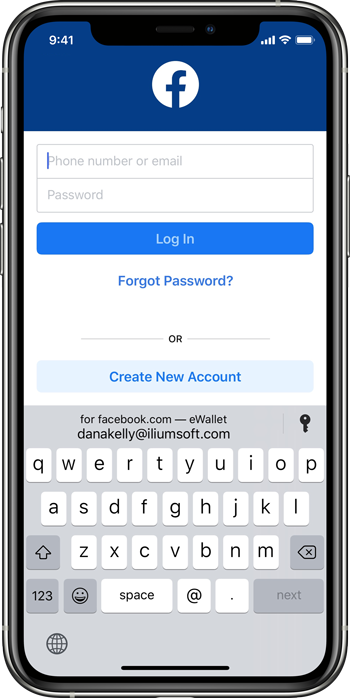
eWallet’s AutoPass feature has long allowed users to click on a URL in their wallet and have the username and password filled in on the website, all displayed directly within eWallet. In eWallet 8.4, AutoPass was enhanced to also work with the AutoFill feature that was introduced with iOS 12. Now this new update takes auto-filling of usernames and passwords even further, adding QuickType bar support, improved domain matching, and search. Tap in a username or password field in Safari or any other app, any you’ll be presented with credentials right above the keyboard; tap the credentials and voilà! We’ve got full instructions in our support area if you would like more detailed information.

Dark Mode

The release of iOS 13 brought Dark Mode to iPhones and iPads, where “the system uses a darker color palette for all screens, views, menus, and controls, and it uses more vibrancy to make foreground content stand out against the darker backgrounds.” As we did with Dark Mode in eWallet for macOS , we went through every panel in eWallet for iOS and made the appropriate adjustments, so they look great in both Light and Dark appearances.

screenshot-01

eWallet for iOS, Dark Mode

screenshot-02

eWallet for iOS, Dark Mode

screenshot-03

eWallet for iOS, Dark Mode

As usual, we had a hard-working group of beta testers for the 8.5 release; we made significant changes during this beta as a direct result of feedback from the group. If you have interest in participating in a future beta, or have any questions or comments about the release, please contact us!

eWallet 8.5 for iOS runs on iOS 8 and up, including iOS 13 and iPadOS 13. eWallet is optimized for iPad Air and iPad Pro, iPhone 5, 6, 6 Plus, 6s, 6s Plus, SE, 7, 7 Plus, 8, 8 Plus, iPhone X, iPhone XR, iPhone XS, iPhone XS Max, iPhone 11, iPhone 11 Pro, and iPhone 11 Pro Max. The latest version is available via the on-device App Store. Get all the info about eWallet for iOS here on our site.

App Store logo

App Store logo


* eWallet supports both iOS and iPadOS

eWallet is a registered trademark of Ilium Software, Inc.

Share this article:


Customer Service – Question of the Day

by Lee
question of the day image

question of the day image

Hi!

I’m back with another post for the Question of the Day. Today’s question is, “How do I move eWallet to my newly upgraded phone or tablet?” We get this question a lot from people who upgrade within the same platform. (As a side note, switching between platforms, e.g., Android to iPhone or vice versa, is not that different, you just need to work with a different app store).

Probably the easiest way is to backup your entire device and then restore it to your new phone, that way all your apps and data will be on your new device and ready to go. If you haven’t done that, then you simply need to re-install eWallet and copy your wallet(s) to your upgraded device.

If you have a new mobile device (same platform), you can log back into the app store you purchased eWallet from, go to your Purchased apps list in the app store, and click the icon next to eWallet to redownload. You’ll get the latest version of eWallet for that device!

To get you wallet file(s) on your new device, that’s easy too. It’s always good to have a backup, so start eWallet on your old device, tap More (three dots) then Email Backup or Share/Backup Wallet File to send yourself a copy of your encrypted wallet file. You can open that copy on your new device, or if you’ve been syncing to the cloud or a PC/Mac, simply sync your wallet over to your new device instead.

As always, if you get stuck, need more details, or have a question, please contact us!

Share this article:


Customer Service – Question of the Day

by Lee

Hi!

My name’s Lee, and if you have contacted our Support department here at Ilium Software any time in the last decade and a half, you may have heard back from me. I’m still here because good companies are hard to find, and I love working here!

You may not see us posting a ton online as we tend to focus on the products (there’s always new versions in the works!) and our customers; in fact, I spend most of my time answering questions about our software.

With all that in mind, I would like to post “the question of the day” here occasionally. Maybe it will help someone out that thinks it might be a waste of time to contact us directly (it’s not, by the way!). Or maybe just for fun. Let us know what you think!

Since I didn’t see a common theme in our emails today, I’m going to write about a cool tip for iOS apps that a few eWallet for iOS users ran into. Recently, there was some sort of isolated hiccup with Apple’s Family Sharing in iOS 13 where an app licensed under the Family Sharing plan sometimes wouldn’t start up, and a user gave us a heads-up on a very easy fix.

Did you know you can “Offload” and then “Re-install” an iOS app and still have your data? Doing this re-install resolves the licensing glitch with the App Store and the app will then start up just fine. There are Very Specific Steps for this, so don’t just randomly remove apps from your device! See the steps below.

To “Offload” an app from your iOS device, and reload without losing your data:

  1. Backup your device (always good practice)
  2. Go to the device Settings app → General → [device] Storage → (iOS app)
  3. Tap “Offload App” and confirm
  4. Tap “Reinstall App”

That’s all for today! Talk to you again soon!

Share this article:


eWallet 8.4 Update featuring AutoFill in iOS App Store

by Ken

eWallet logoeWallet® 8.4 for iOS (iPad, iPhone and iPod touch) is now in the App Store. The updated app not only supports the new iPhone XR, iPhone XS, and iPhone XS Max devices, but also features support for AutoFill in iOS 12.
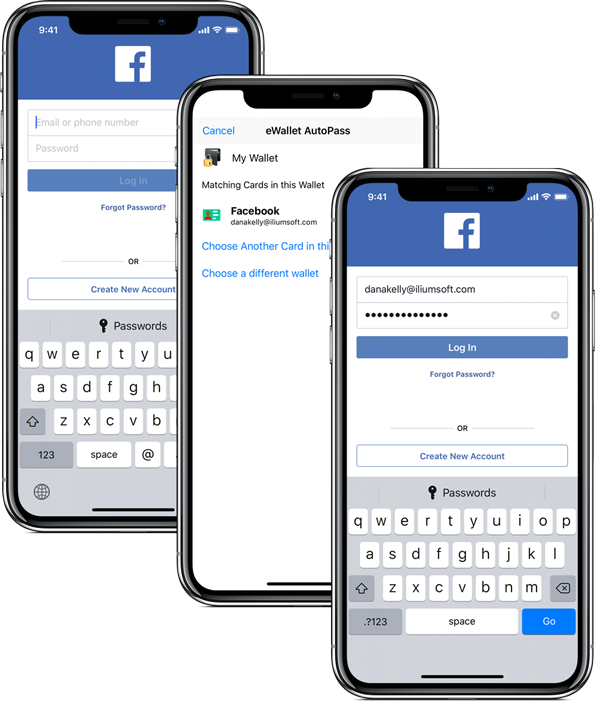
eWallet’s AutoPass feature has long allowed users to click on a URL in their wallet and have the username and password filled in on the website, all displayed directly within eWallet. In eWallet 8.4, AutoPass has been enhanced to also work with the new AutoFill functionality that is part of iOS 12.

eWallet AutoFill screenshots

eWallet AutoFill screenshots

Tap in a password field in Safari or any other app, and AutoFill on the device works with eWallet to fill in the appropriate login information. And like with using eWallet directly, when prompted for your wallet password you can type it in, use Touch ID, or use Face ID, as appropriate for your device.

Our customers have long told us that AutoPass is one of their favorite features in eWallet — and now with AutoFill we think that feature is even more useful.

eWallet 8.4 for iOS runs on iOS 8 and up, including iOS 12. eWallet is optimized for iPad Air and iPad Pro, iPhone 5, 6, 6 Plus, 6s, 6s Plus, SE, 7, 7 Plus, 8, 8 Plus, iPhone X, iPhone XR, iPhone XS, and iPhone XS Max. The latest version is available via the on-device App Store. Get all the info about eWallet for iOS here on our site.

Thank you for using eWallet, and please keep the great feedback coming! A big thank you to our eWallet AutoFill beta team, who helped us test the AutoFill feature and gave us outstanding feedback for this version and versions going forward.

App Store Logo

eWallet is a registered trademark of Ilium Software, Inc.

Share this article:


eWallet and ListPro support iPhone X

by Ken

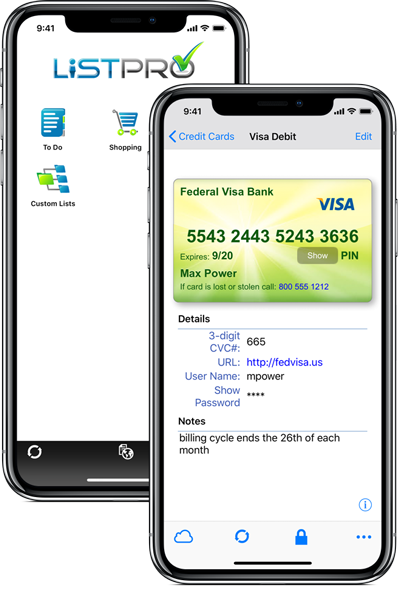
We still get a few prospective eWallet ® and ListPro ® users asking if the apps support the iPhone X — well, yes they do!

eWallet and ListPro screenshots

ListPro & eWallet on iPhone X

Although the iPhone X is similar in physical size to the iPhone 8, it actually has more pixels and a higher pixel density than the physically larger iPhone 8 Plus. The iPhone X also has the interesting notch at the top of the screen and of course, no home button. In addition to completely supporting this new high resolution iPhone X screen, eWallet also supports Apple’s Face ID technology allowing you to (optionally) unlock your wallets in the same way you unlock your phone.

Have other questions about eWallet or ListPro on the iPhone X – feel free to reach out to us and we’ll be happy to answer them.

eWallet 8.3 for iOS runs on iOS 8, iOS 9, iOS 10, and iOS 11 and is optimized for iPad Air and iPad Pro, iPhone 5, 6, 6 Plus, 6s, 6s Plus, SE, 7, 7 Plus, 8, 8 Plus, and iPhone X. The latest version is available via the on-device App Store. Get all the info about eWallet for iOS here on our site.

ListPro 5.2 for iPhone runs on iOS 8, iOS 9, iOS 10 and iOS 11 and is optimized for iPhone 5, 6, 6 Plus, 6s, and 6s Plus, SE, 7, 7 Plus, 8, 8 Plus, and iPhone X. The latest version is available via the on-device App Store. Get all the info about ListPro for iPhone here on our site.

eWallet and ListPro are registered trademarks of Ilium Software, Inc.

Share this article: